
The camera roll is the starting point
iPhone Travel Photo Books
Select photos from one trip on your iPhone, let Magic Builder make a first draft, then edit pages, captions, maps, and the cover before previewing the book for printing and delivery.
 Start on iPhone with the photographs you choose.
Editorial guide · Reviewed September 5, 2026
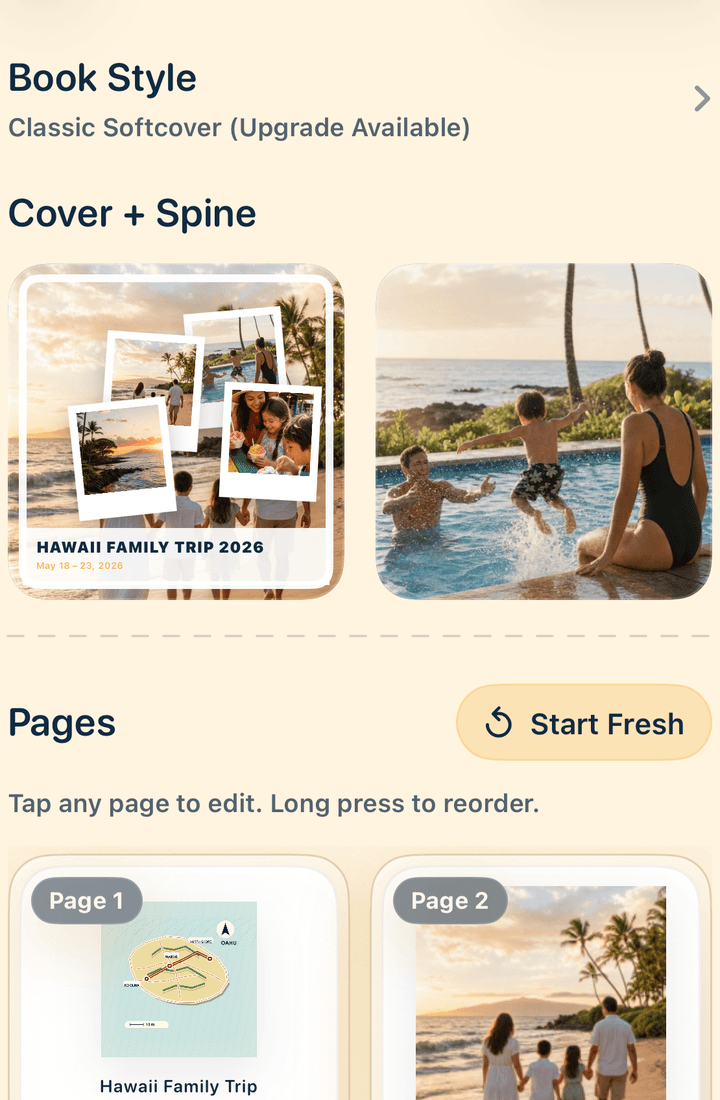
Make and edit the book on your iPhone
Away We Go is built for making a travel photo book from your iPhone. Choose the photographs for one trip, let Magic Builder create a first draft, then rearrange pages and photos, add grids, captions, story pages, maps, artwork, crops, frames, and a personalized cover. Review the finished book before choosing a classic or premium softcover or premium hardcover for printing and delivery.
Start with a dedicated album for the trip and gather photographs from every person who wants to contribute. Give the album a useful name—destination and year is enough—so you can find it again when the trip is no longer recent. Make your book decisions inside this working album and leave the original library untouched; a reversible edit is easier to trust.
- Choose a focused album for one trip.
- Let Magic Builder make the first draft.
- Preview the book before printing and delivery.
- Choose the printed format after the story reads well.
Use story roles to escape the endless scroll
Give each candidate a role: scene setter, person, action, detail, transition, or ending. This changes the question from “Is this my favorite?” to “What work does this image do?” A technically ordinary photograph may be the only one that shows who was holding the map or what the weather did to the plan.
Choose one anchor for each major day or stop, then add supporting photographs that provide new information. If three images show the same view, keep the one with the clearest gesture, expression, or sense of place. A smaller set with contrast will make the later layout decisions much easier.
Let the first draft show you what is missing
Away We Go’s Magic Builder creates a first draft from the photographs you select. That draft is useful even when it is not finished: it exposes repeated views, quiet gaps, and the days that have too many images competing for attention. Taste Check and Cover Star make two early decisions more playful, but they do not replace your knowledge of the trip.
Respond to the draft in order. Fix the sequence first, then the photo choices, then the layout, then the words. Rearrange pages and photos, use grids for sequences, and give a single image room when it carries the turn in the story. A crop or frame adjustment should clarify the moment, not rescue a page that has too many ideas.
Add the context your iPhone could not record
A phone can preserve a face and a place, but it cannot explain why everyone was laughing or what changed after the photograph. Add short captions for names, sounds, food, weather, and running jokes. Use a story page when a turning point needs more than one sentence. Our captions and story prompts guide gives a practical set of questions for this pass.
Custom maps and destination artwork can give a multi-stop trip a sense of geography. Use them as a chapter break or a moment of orientation. Artwork for more than 250 destinations is available in Away We Go, but the map or illustration should support the photographs rather than become the subject of every spread.
Design for the way the book will be read
Look at the book as a sequence of page turns. Follow a busy grid with a quieter image. Move from a wide scene to a close detail. Check that faces, hands, signs, and important edges survive the crop. A good layout gives the eye a next place to go and gives the strongest memory enough space to land.
The cover only needs to answer three questions quickly: whose trip is this, where did it happen, and when? A destination, year, short title, and one strong image are usually enough. Keep the type readable at the scale of a shelf, then do a final reader pass before choosing the format.
Your iPhone workflow can end in a printed book
Once the sequence feels right, review the book from cover to last page. Away We Go lets you adjust pages, photos, grids, captions, story pages, crops, frames, maps, artwork, and the cover after the first draft. That combination keeps the starting work light while leaving the meaningful decisions in your hands.
Away We Go offers classic and premium softcover formats and a premium hardcover, with a preview before printing and delivery. Choose the format after you know how the book reads, then use the preview to check the details that matter: names, faces, dates, and the page where the trip says goodbye.
Keep shaping the story
Choose the next useful step
Travel photo books for family trips
See how a selected camera roll becomes a personal printed story.
Read next →How to choose photos for a travel photo book
Use a repeatable edit for duplicates, people, place, and pacing.
Read next →Travel photo book captions and story prompts
Add the sounds, jokes, and context your camera roll left out.
Read next →How to structure a road trip photo book
Turn stops, route changes, and transition moments into chapters.
Read next →Before you start
- What iPhone do I need to use Away We Go?
- Away We Go requires iOS 18 or later. Start with the photographs you want to use rather than moving your whole camera roll.
- Can I change the book after Magic Builder makes a draft?
- Yes. Rearrange pages and photos, choose grids, add captions and story pages, adjust crops and frames, add maps or destination artwork, and personalize the cover.
- What printed formats are available?
- Away We Go offers a classic softcover, a premium softcover, and a premium hardcover. Preview the finished book before printing and delivery.